
Account Management
 How to Create an Account

Getting Started
Creating a MyCKC account is easy for CKC members. If you’ve registered a dog with CKC before, you already have everything you need!
To create or access your account, you’ll need:
- Your CKC member number
- The email address we have on file
Please note: A MyCKC account gives you access to convenient online services, including registering dogs, litters, or puppies and purchasing web advertisements all in one easy place.
Finding your member number:
It’s usually included on CKC emails and mailed correspondence, such as letters or registration documents. Check previous emails or documents you’ve received from us. If you do not have your member number, please call Customer Service for assistance.
I have registered with CKC before.
Step 1: Go to Log In
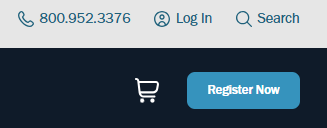
- Desktop: Click Log In at the top right of the page.
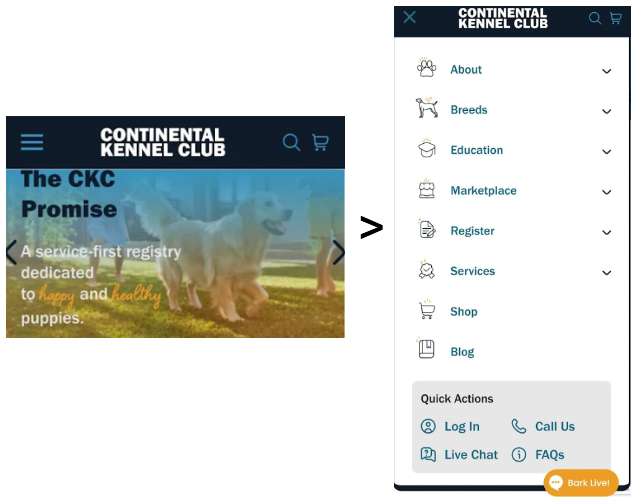
- Mobile: Tap the menu icon (three blue lines) in the upper left, scroll to Quick Actions, and select Log In.
Step 2: Start Password Reset
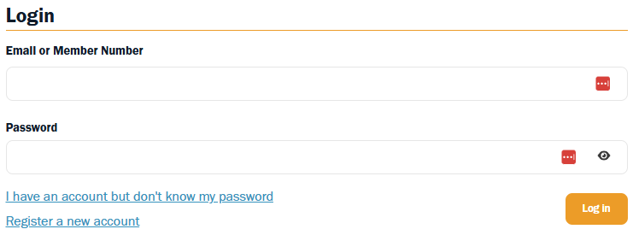
- Click “I have an account but don’t know my password” located below the login and password fields.
Step 3: Enter Your Information
-
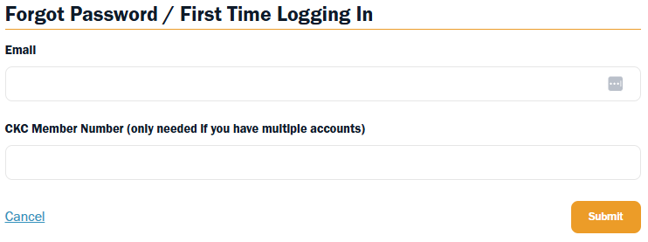
Enter the email address linked to your CKC membership. If you have multiple membership accounts that use the same email address, enter the member number for your primary account also.
-
Click Submit. A password reset request email will be sent within five minutes.
Step 4: Check Your Email Inbox
-
Your password reset request email can take up to five minutes to show up in your email.
Be sure to check your spam or junk folder if you don’t see it in your main inbox.
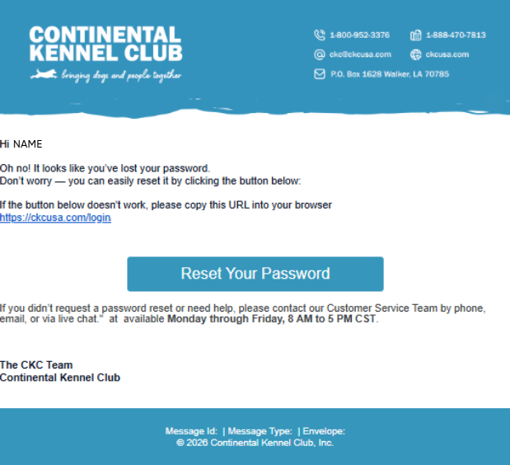
- Open the email titled “Reset Your Password” and click the Reset Your Password button (note: the link is time-sensitive).
-
This is the email you receive information from CKC.
Step 5: Set Your New Password
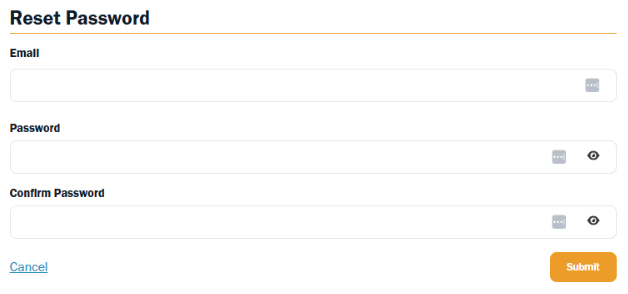
- Create your new password, then log in with your updated credentials.
Need Extra Help?
If you don’t know your member number, aren’t sure which account to use, or would like to merge multiple accounts, our CKC Customer Service team is happy to help. Call 1-800-952-3376 for assistance.
I have never registered a dog with CKC.
- Click "Log In" on the upper right-hand corner of the page. (On mobile, Log In will be in the grey area under the three blue lines on the upper left-hand corner of the page.)
- Select Register New Account.
- Enter your email address, create a password, enter the password again to confirm, then select your country. Make sure to read and check the box for consent to send emails to the one entered for the account.
- You will be redirected to the screen to enter your email and account password.
- Once you hit submit, you will be logged in to your new account.
Please refer to the Account Management Section for questions about how to use your MyCKC Account.
Personal Information and Password Reset

I don't know my password to log in. How do I reset my password?
Click the "I have an account but don't know my password" link under the MyCKC login page. Enter your email address and member number* (if needed in instances where multiple accounts use the same email address*) and click submit. If there is no email address associated with the existing account, please contact Customer Service for assistance.
If you do not receive a 'reset my password' email and know there is an email address associated with the account, the email may have been unsubscribed from our website. We will need to resubscribe the email address to receive communications again. Please call Customer Service for assistance.
How do I update my personal information?
Go to "MyCKC," and in the left horizontal menu, click the tab labeled "My Information" and then the "Edit Info" button. This will bring you to a new page where you can edit your information, your address information, and your delivery address information. If an update needs to be made to an email address, you must call a Customer Service Representative at 1-800-952-3376.
How do I change my password?
Go to "MyCKC," and in the left horizontal menu, click the tab labeled "My Information" and then the "Change Password" button. This will bring you to a new page where you fill in your current password, and then a new password, and confirm it.
Orders and Transaction History

Where can I find the status of my current orders? How do I track my orders?
Go to "MyCKC," and in the left horizontal menu, click the tab labeled "Past Orders." You will be able to see past and current orders, order status, payment status, and order dates.
How do I start a return or exchange? What is your return policy?
In our Help Center, you can click the "Policies & Terms" button to find where we outline answers to frequently asked questions regarding our returns and refunds policies.
Can I submit more than one order at a time?
Yes. Once you have gone through your first order and it shows an item in your cart, you can then click another registration option on the left horizontal menu to begin another request.
- The request does not have to be of the same type as the first one submitted. For example, you can submit multiple litters or individual dog registrations simultaneously.
- Follow the steps for each registration type, then ensure it is in your cart before proceeding to the next request.
- Once you have completed each request and it is in your cart, you can proceed to check out.
- Litters cannot be registered until both parent dog(s) are approved. Any litter submission involving a parent dog that needs to be registered must wait until the parent(s) are "Active" on the account.
Payment and Billing

My payment failed. What should I do?
If you have an issue with a payment, please contact one of our friendly customer service representatives at 1-800-952-3376.
Communication Preferences

How do I subscribe to newsletters and promotional emails?
When you register a dog with us, you will automatically be added to our customer newsletter email list and receive emails related to any promotions or special offers we may have.
Do you have a feedback survey I can submit?
Yes. In an effort to provide members with a platform for feedback about the website and overall experience, we have created a survey to tell us about your experience. Click here to get started.
Troubleshooting

When I try to log in, it tells me "This email address is tied to multiple accounts"
This means the email address entered for a password reset has been used on multiple or duplicate accounts for the same user or multiple users. Each member account should have its own unique email address to log in, or you will need to know the member number associated with the account to log in/reset the password. Please call Customer Service to resolve the issue.
